 CyberXiaoya
OBS guide: stream or record your live video
The website itself doesn't stream out. Use Window Capture in OBS to grab the video from Chrome, then stream it to your platform or record it. Installing, cropping and audio setup don't need a live session, so they cost nothing.
Before you start
- A computer with desktop Chrome and OBS Studio. Button names below come from OBS 32 for Windows in English. In November 2026 we tested Window Capture, cropping, audio capture and recording on Windows 11 with a test picture. We haven't tested streaming to each platform or a real live session. Other OBS versions may differ slightly, and the capture source has a different name on a Mac.
- A balance or the free trial. One free 60-second trial per Google account, subject to capacity and daily availability. Billing starts once you click Start and the server confirms the connection. One hour costs about 78.12 USDT on Live 1, 89.94 USDT on Live 2 and 117.19 USDT on Live 3.
- To stream, have your platform's server address and stream key ready. You don't need them just to record.
- Only use a character you own or have permission to use, and don't impersonate anyone. See responsible use.
Set it up step by step
- 1
Prepare the page
Open the live page in Chrome, pick a line in the left menu, then drag the tab out into its own window. Window Capture only shows the tab that's currently visible in that window.
- Turn off Mirror view (Live 1 and Live 2). The note beside it, "the video sent out", means the camera video sent to our server. OBS captures what's on screen, so with Mirror view on your stream is flipped left to right. It turns back on when you reload the page. Live 3 doesn't have this switch.
- Set Auto-end after (minutes) to how long you plan to stream. The default is 10 and the maximum is 120.
- Make the video larger. Live 1 and Live 2: maximize the window and press Ctrl and + until the page is at 200%. Live 3: stay at 100% so the video and the text box both fit on screen.
- While you're live, don't minimize this window or let another program cover it completely, or OBS shows nothing or a black video. The OBS window itself can sit on top of it. It's best to put Chrome and OBS side by side, or Chrome on a second monitor.
- 2
Add Window Capture in OBS
The first time you open OBS, the Auto-Configuration Wizard pops up. You can cancel it. In the Sources panel, click +, choose Window Capture, create it, pick this Chrome window under Window and click OK.
If the preview is black, first check that Chrome isn't minimized or completely covered by another program, and click it if so. If it's still black, double-click the source and check Capture Method. With BitBlt (Windows 7 and up), Chrome is completely black, so switch back to Automatic or Windows 10 (1903 and up).
If you don't want the mouse pointer in your video, untick Capture Cursor in the same window.
- 3
Crop to the result video
First scroll the page until the Result video is fully visible, right below the top bar. At 200%, only a sliver of it shows at first. In this position, the support chat button at the bottom right stays off the video. Then, in the OBS preview, hold Alt and drag the edges of the red box until only the Result video is left. Right-click the source and choose Transform, then Fit to screen. Before you start, that area is just black with a line of text, so crop against that frame.
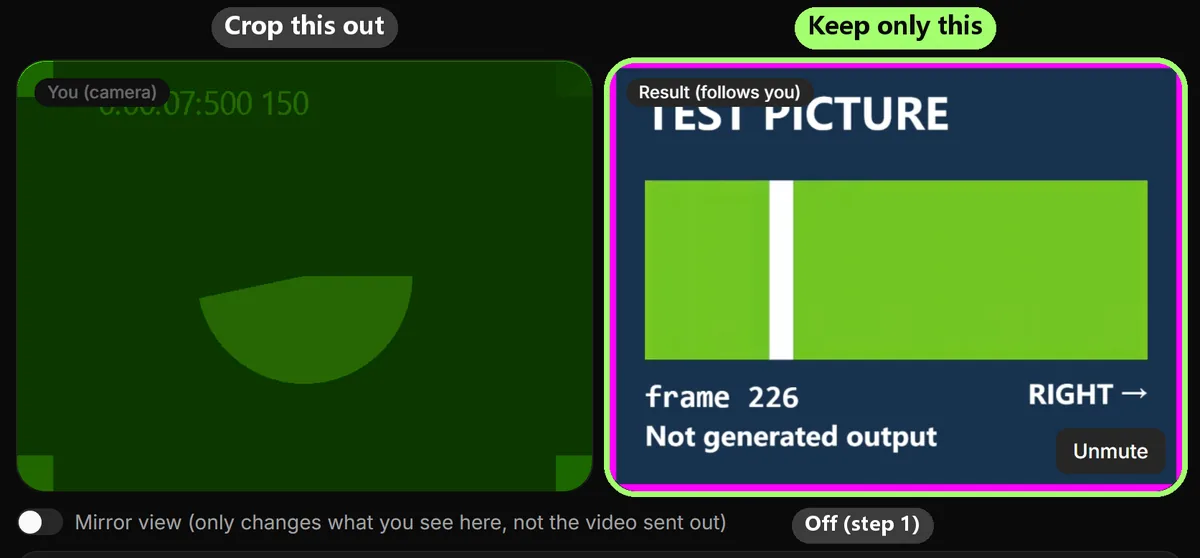
Real screenshot: crop out the left, keep only the right. The picture is a test signal, not generated output. You (camera) shows your real camera, so keep it outside the box. Once cropped, don't change the window size or page zoom, and don't scroll the page again (scrolling the mouse wheel over the window scrolls it too), or the crop will drift. Don't crop out any watermark or AI label in the video.
- 4
Set up audio
Live 1 and Live 2: let OBS capture your microphone directly. Speak and check whether Mic/Aux moves in the Audio Mixer. If it doesn't, add an Audio Input Capture source and choose your mic. Leave Send my audio too off on the page. The generated video runs slightly behind your voice, so open Advanced Audio Properties from the mixer's toolbar or right-click menu and add a Sync Offset to the mic. Start with a few hundred milliseconds and clap on camera to fine-tune it.
Live 3: her voice comes from the page. Double-click the Window Capture source, tick Capture Audio (BETA), then mute Desktop Audio and Mic/Aux in the mixer. Desktop Audio picks up the same voice, so leaving it on doubles the sound. Don't click Mute on the page, or OBS won't capture anything either. If the activity log says the browser blocked the sound, click the page.
- 5
Label it AI-generated
Anything you publish or stream must be labeled "AI-generated" under the Terms of Service. Add a Text (GDI+) source, type AI-generated and drag it to a corner of the video. Follow your platform's own AI-content rules too.
- 6
Go live
To stream, go to Settings, then Stream. Under Service, choose your platform or Custom..., then fill in Server and Stream Key. Skip this if you're only recording.
Back on the page, click Start (billed per second), then click again within 6 seconds to confirm. Billing starts when the server confirms the connection, and video usually appears 5–15 seconds later. When it does, scroll back to where you cropped and check the OBS preview. What you see there is what viewers get. Adjust the crop if needed.
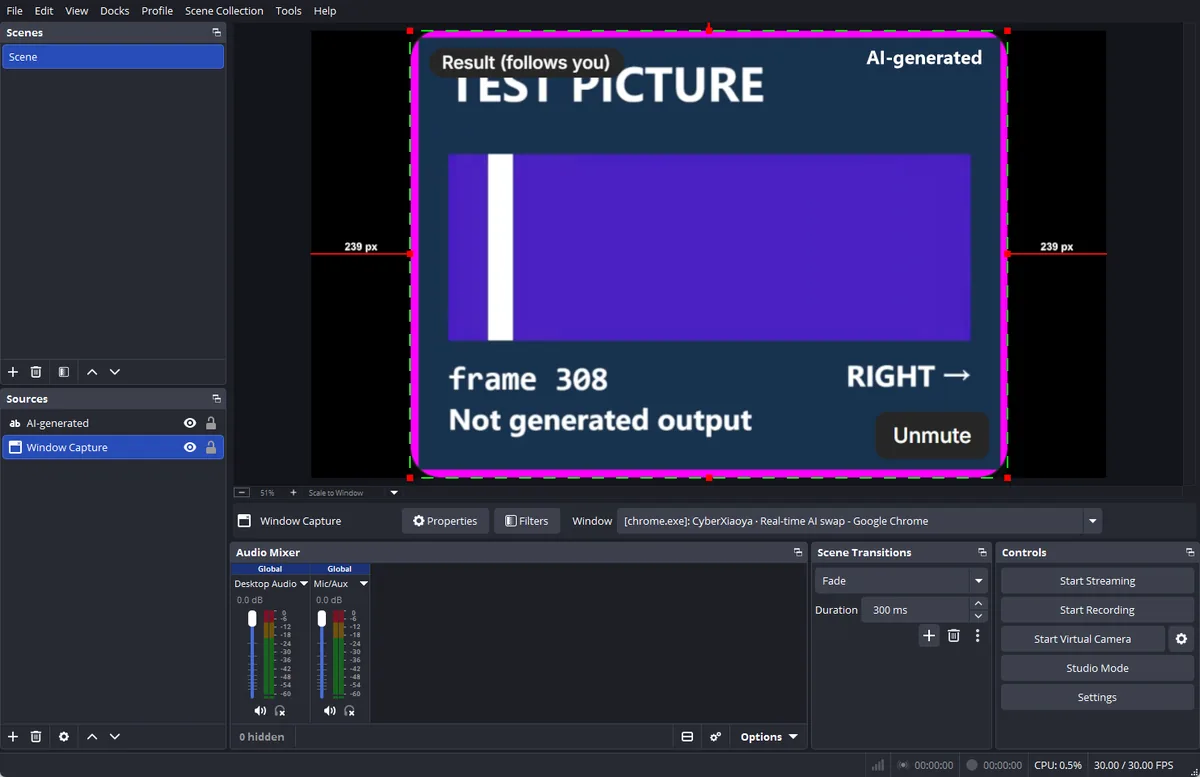
OBS after setup (real screenshot). The preview shows a test signal, not generated output. When everything looks right, click Start Streaming or Start Recording in OBS. Recordings go to your Videos folder as MP4 files by default. For your first run, record a short clip or stream to a private broadcast, because we haven't tested every platform.
- 7
Finish
Click Stop Streaming or Stop Recording in OBS first, then End on the page. The other way round, viewers see the ended message and the session charge. Closing OBS doesn't stop billing, so go back to the page, end the session and check its settlement. While you're live, the top bar always has an End button.


FAQ
Why is the video missing, black or frozen in OBS?
When the Chrome window is minimized, OBS shows nothing. When another program covers it completely, the Result video turns black. Click the Chrome window and it comes back in about a second. The OBS window itself can sit on top of Chrome. While you're live, keep Chrome and OBS side by side, or Chrome on a second monitor.
Why is Window Capture empty after I reopen OBS?
OBS finds the Chrome window by its title. If the title changes, for example because you switched the page language or the window is showing another tab, OBS can't find it. Switch Chrome back to the live page, double-click the source, pick the window again under Window, then check the crop.
The video is small or a little soft. What can I do?
What OBS can capture depends on how large the video is on the page. These sizes were measured with Chrome maximized on a 1080p screen (window 1920 pixels wide):
| Line | Page zoom | Result video |
|---|---|---|
| Live 1 and Live 2 | 100% | About 432×324 |
| Live 1 and Live 2 | 200% | About 800×600 |
| Live 3 | 100% | About 876×657 |
At 1080p output the video gets scaled up and can look soft. Try setting Base (Canvas) Resolution to 1280x720 under Settings, then Video. The video frame is 4:3, so black bars at the sides of a 16:9 canvas are normal.
Can I remove the label at the top left and the sound button at the bottom right?
They sit on top of the video and get captured with it, so for now you can only crop further in.
How long can I stream?
A session lasts as long as you set, up to 120 minutes, and also ends when your balance runs out. Once connected, check the activity log. If it shows a per-session limit in seconds, the session disconnects at that point and you need to start again. Before a long stream, do a test run to check the results and cost, and turn off sleep and auto-lock on your computer.
Can I use OBS as my camera?
Yes, on Live 1 and Live 2 only. Click Start Virtual Camera in OBS, then choose OBS Virtual Camera under Camera on the page. The OBS scene needs a person in it, otherwise there's only a placeholder image and nothing to swap. Don't put the result video in that scene, or the picture will loop.
Next: getting started · help · pricing and trial
Try it now: move in front of your camera
Sign in with Google to try it free or top up to start.
Start with Google